There are a lot of content calendar templates out there.
Most of them are (frankly) quite shite.
These ones, in my humble opinion, are quite good.
They’re the actual content calendar templates that I’ve iterated on throughout my career as an content marketer – made by someone that actually uses them, not by a marketing software company trying to turn you into a lead for their sales team.
There are two versions, because I started off religiously using Google Sheets or Excel, but more recently I’ve made the switch to Notion.
Both templates include guidance on how to use it, with examples to help you get started (there’s nothing worse than a blank template).
They’re comprehensive, but fully editable so you can take what you need and leave the rest behind. There’s also a simplified calendar / roadmap view for each, which I find makes stakeholder comms much, much easier.
Content calendar template for Notion
The content calendar template for Notion has four parts:
- How to use. At the top of the Notion page you’ll find instructions and guidance on how to use the template and make your own content calendar.
- Calendar view. An overview of content being published across all content marketing channels for the next month. Content calendars can contain an overwhelming amount of information, and I often find that it’s easier to look at a quick snapshot of what’s coming up – plus this is very handy for communicating that information to stakeholders or colleagues too. So, this calendar view strips away all the detail to provide that.
- Plan. A table / database view which contains all the details that you need when planning, managing, and publishing content across several channels. It contains the following inputs: title, status, owner, publication date, description, notes / next steps, target audience, pillar topic, format, funnel stage, target keyword, draft copy, live link.
- Performance. I find it useful to also keep a top-level view of performance for individual content pieces in the content calendar, so there are also views for the key performance metrics. I’ve included separate views for blog performance and LinkedIn performance, because each channel typically has different useful metrics. If there are other channels or metrics that are useful for you to track here, you’ll just need to duplicate the view, edit the content, and add new columns for the metrics you need to see. If you like to keep reporting completely separate to planning, you can just delete these views completely.

Why is Notion a good option for your content calendar?
Everyone’s on Notion these days.
Including me.
It’s my platform-of-choice currently for content planning and management – which means it’s also where my own content calendars live (both my personal content calendar for this website, and professionally for clients too).
Notion is easy to set up and flexible enough to cover the format needs of a whole team, from project plans to company documentation to setting up an effective content calendar, and beyond.
Plus, when it comes to content marketing tools, I’m a big advocate of using what your team already has.
Most project management tools will have the functionality you need for a content calendar – just like Notion does.
So, given so many teams already use Notion (or other tools like Asana, Monday, ClickUp, etc), you rarely need to invest in a standalone content planning tool.
Content calendar template for Google Sheets and Excel
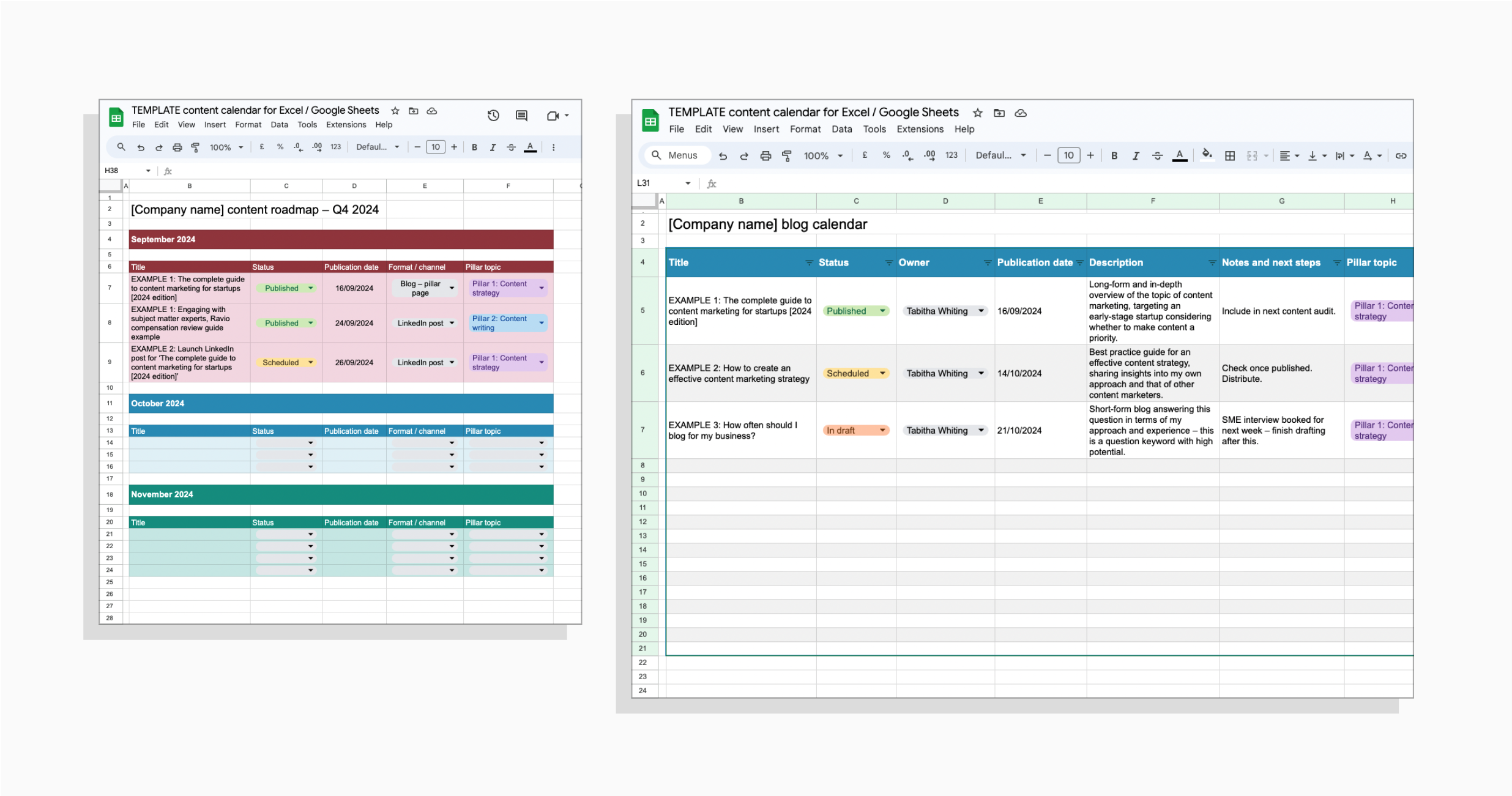
The content calendar template for Google Sheets and Excel has four parts:
- How to use. The first sheet contains instructions and guidance on how to set up your own copy of the content calendar and how to populate it with your own content plans.
- Content roadmap. An overview of content being published in the next quarter – a useful snapshot for sharing with stakeholders or colleagues.
- Blog calendar. A template for content planning and publication for a blog as the core content channel. It contains the following inputs: title, status, owner, publication date, description, notes / next steps, target audience, pillar topic, format, funnel stage, target keyword, draft link, live link, key content performance metrics – but you can, of course, edit those columns to meet your needs.
- LinkedIn calendar. A template for planning and managing content production for a LinkedIn page. It contains the following inputs: title, status, owner, publication date, publication time, target audience, pillar topic, format, funnel stage, post copy, image brief, image link, live link, key LinkedIn post performance metrics.
I’ve included blog and LinkedIn as two key channels typically used for B2B SaaS companies, which is my own personal focus. If you have different or additional content formats or channels that need to be reflected on your content calendar, simply duplicate one of the calendar sheets and edit the columns to align with that content format.
Why are Google Sheets and Excel good options for your content calendar?
Spreadsheets are the OG of the content calendar world.
A decade ago, if a marketing team showed you their content or editorial calendar, there’s no doubt that it would be in an Excel format – or Google Sheets if they were a Google company over Microsoft.
That isn’t true today – there are a whole host of content calendar tools and project management softwares out there that can be used for effective and organised content planning (like Notion!)
But some people still love an Excel or Google Sheet content calendar.
And there’s absolutely nothing wrong with that.
In fact, I salute it.
A spreadsheet does everything you need it to do. Rows, columns, filters, drop downs, tabs for different channels or views – it’s basic, but it does the job.
This free template just exists to make life a little easier – because setting up an Excel content calendar for the first time (whether it’s the first time ever or the first time at a new company) is always a bit of a nightmare.
 Tabitha Whiting: High-impact content for high-impact startups